
Setting up Crawler Fields for the Rich Inline Template
Whether you’re designing In Cludo Studio or implementing directly, display fields pull from crawler fields in MyCludo. A display field is blank unless the matching crawler field has been populated.
Only Title, Description, and URL are populated by default. Everything else comes back blank until you set it up. The table below shows which crawler fields need what.
You set these up in MyCludo under Configuration › Crawlers, not in Cludo Studio or the implementation itself. Use the Test Crawler to check your mapping before running a full crawl.
New to Cludo Studio? See Cludo Studio for an overview.
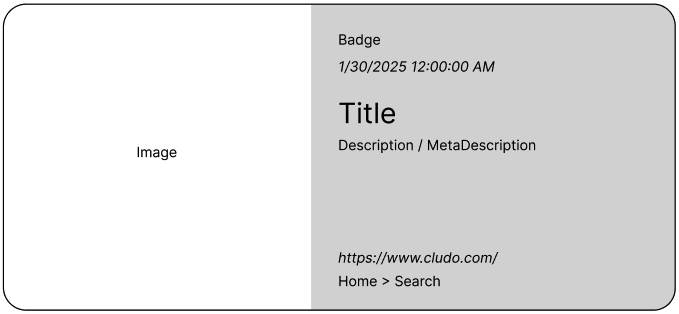
Which crawler fields need setup
| Page Field | Default status | Default Source |
| Title | Enabled | H1 |
| Description | Enabled | Automatic |
| MetaDescription | Ignored | Automatic |
| Category | Ignored | Automatic |
| Image | Ignored | Automatic |
| Date | Ignored | Automatic |
| Breadcrumb | Needs to be created | N/A |
| Badge | Needs to be created | N/A |
Fields MetaDescription through to Date are ignored by default. To use them to index data, you need to edit them, and uncheck the “Ignore field” toggle.
Fields Breadcrumb and Badge don’t exists by default, and need to be created as custom fields.
Title
The main title shown in the search result. This field already exists and uses the automatic value by default. Either the first H1 or title element generally should reflect a page’s title, but other elements such as H2 or ones with specific IDs can be configured
Description
A summary or excerpt shown below the title. This field already exists and uses the automatic value by default, extracting the full page’s content. It should contain not only what you want to display, but also any relevant content on the page.
Meta Description
Field name MetaDescription. The page’s meta description, used for SEO and an enhanced search display. When this field is populated, its contents will replace the Description on the results page.
We suggest extracting it from the meta tag (description) or Open Graph (og:description). It’s optional, but recommended for better clarity and context in results.
Category
Before you configure this field, it’s worth planning out your categories first.
For some sites, URL patterns will be the easiest source to map from, assigning a category based on a string being present on the URL. News and event pages, for example, often use a flat URL like /news/2026/08/27/article-name that can be clearly mapped to a category.
However, in many sites, the URL won’t have a clear indication of the right category to assign. In those cases, check whether the category is available in the page’s metadata, JSON-LD, or CMS taxonomy instead. One final option is to index an breadcrumbs on the page, if present.
See Understanding Facets and Filters in Cludo for how Category relates to other filtering options.
Image
The main image for the page, displayed alongside the result to make it more visual. This field exists and you can try the automatic value first. If automatic does not work, an XPath or meta tag will likely be required. The image URL must publicly accessible, otherwise it may not render in results.
Date
Field name Date. The date associated with the content. There is an automatic value, and if it does not work it will require an XPath. Make sure the value is recognized as a date string (the indexed field becomes Date_date). If the date is not formatted correctly, it will not be translatable, filterable, or usable in date facets, and the raw string will be shown as is. Reach out to us if you would like help configuring this.
Breadcrumb
The hierarchical navigation path for the page (for example “Home > Products > Laptops”). Breadcrumbs often follow a consistent pattern, so an XPath such as //*[contains(@class, "breadcrumb")]//a works in many cases. If this field is missing, the crawler uses the page link instead.
Badge
Field name Badge. A tag included in Rich Inline, displayed above the title next to the category tag. It can be the same as Category or something else entirely. You can map it from specific URL patterns, metadata, or an XPath.
Extra facet or category
Setting up an Extra Facet takes two steps, and both are required before it appears in your search:
- Create and populate the custom field in your crawler (Configuration › Crawlers › select your crawler › Edit › Content › Add custom field).
- Register that field as a facet on your search engine by emailing support@cludo.com with your Customer ID, the Engine ID, and the exact custom field name you want registered as a facet.
See Understanding Facets and Filters in Cludo for more information on how facets affect the search experience.
What else to set up in MyCludo
Beyond the crawler fields above, a few other things are worth setting up depending on what your Rich Inline search needs to do.
New to MyCludo? See Introduction to MyCludo for an overview of the platform.
Crawler configuration: the field setup above is specific to Rich Inline results. For general crawler configuration, see the Crawler Setup Guide.
Pre-search Suggestions: to show suggested searches before a visitor starts typing, see Pre-search Suggestions.
AI Summary, Feedback, and Intelligent 404: these are configured separately in Experience Builder, not in Cludo Studio. AI Mode isn’t part of Experience Builder yet; see Implementing AI Mode for its own setup.