
Moving from Legacy Inline to Rich Inline
Rich Inline is Cludo’s current self-service search results template. It’s included with Cludo Search and works with your existing search index. Legacy Inline is deprecated and no longer receives new template functionality. Moving to Rich Inline keeps your search experience ready for future functionality.
See the Rich Inline Template Technical Reference for the full code implementation, styling, and configuration reference. If you’re designing your search in Cludo Studio first, see Setting up Crawler Fields for the Rich Inline Template, then get started at Cludo Studio. This article focuses on what changes if you’re moving from Legacy Inline.
What changes with Rich Inline?
Please note
ℹ️ Some Rich Inline features may require additional setup in Crawlers, Engines, Tools, or Experience Builder before they can be enabled on your search experience.
| Feature | Legacy Inline (deprecated) | Rich Inline |
|---|---|---|
| Pre-search Suggestions | ✓ | ✓ |
| Voice Search | ✓ | ✓ |
| Banner | ✓ | ✓ |
| Search-as-you-type (SAYT) | Not available | ✓ |
| Additional facets (beyond the default Category) | Not available | ✓ |
| Categorized results | Not available | ✓ |
| Pre-search filters | Not available | ✓ |
| Display fields | ||
| Title, Description, Image, URL | ✓ | ✓ |
| Meta Description, Breadcrumb, Date, Badge | Not available | ✓ |
Additional Rich Inline features
Additional display fields
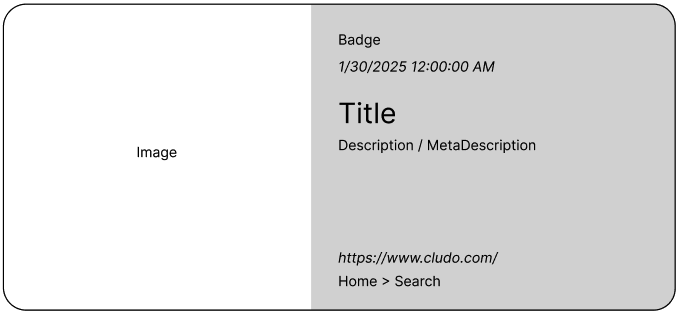
Once configured in your crawler, Rich Inline can also show Meta Description, Breadcrumb, Date, and Badge on each result, alongside the existing Title, Description, Image, and URL fields. This gives visitors more context on a result before they click it, without you having to redesign the results layout.
Search-as-you-type (SAYT)
As the visitor types, Search-as-you-type can suggest full pages, not just search terms. Clicking a suggestion takes the visitor straight to that page, skipping the search results page entirely. This shortens the path to the right content for common searches.
Additional facets
Legacy Inline supports one facet: the top-level Category filter. Rich Inline lets you add more facets on top of that (for example Degree Level or Policies alongside Category), so visitors can narrow results by more than one dimension at once.
Categorized results
Instead of one flat list, results can be grouped into top-level categories (for example Tuition & Aid, News, Catalog) with a top result and a “Show all” link per group. This helps visitors scan a broad search term across different types of content at a glance.
Pre-search filters
You can scope a search box to a specific section of your site by default (for example “Admissions only”), so the visitor doesn’t have to filter manually after searching. This is useful for section-specific search boxes placed outside the main search page.
See everything together
Ready to move to Rich Inline?
You can continue using your existing Cludo crawlers and engines while creating a new Rich Inline experience in Cludo Studio. Design it in Cludo Studio, and Studio generates the implementation code for your developer.
- Review whether you want to add any new display fields, such as Badge, Meta Description, Date, or Breadcrumb. These may need to be configured in MyCludo → Configuration → Crawlers → Content.
- Check whether any features you want require additional setup. For example, Pre-search Suggestions require setup in MyCludo → Tools → Pre-search Suggestions.
- Use your existing Customer ID and Engine ID, found in MyCludo → Configuration → API, in Cludo Studio to design and preview your new experience.
- Once everything looks right, select Get Implementation Guide at the bottom of the Cludo Studio configuration panel. Cludo Studio generates the stylesheet, HTML, and configuration code with your design already applied. For styling and every configuration option, see the Rich Inline Template Technical Reference.
Need help? Contact support@cludo.com for assistance with crawler field setup for display fields, top level category filters, badges, extra categories for facets, or any other configurations.