
Crawler Setup Guide
Cludo’s crawler experience makes configuring site indexing faster, simpler, and less error-prone. Whether you’re preparing a new search engine or updating an existing setup, this guide walks you through each step of the new interface.
Overview: What is a Crawler?
A crawler is Cludo’s tool for indexing your website content. It works by scanning your specified domains, identifying and following links (or sitemap URLs), and extracting page content and metadata into your search engine.
Crawlers support both:
- Web pages (HTML-based content)
- Files (such as PDFs, Word docs — if enabled)
Crawlers can follow internal links and discover content automatically, or index specific URLs and sitemap files you define. Once configured and linked to an engine, crawlers power the searchable content users interact with on your site.
Crawler Setup: Step-by-Step
The setup flow includes five tabs. If you’re editing an existing crawler, you’ll see a summary view of all your settings, including domain configuration, behavior rules, source fields, and any engines the crawler is linked to. From here, you can test crawl individual URLs or open the crawler in edit mode. Here’s how to configure each step:
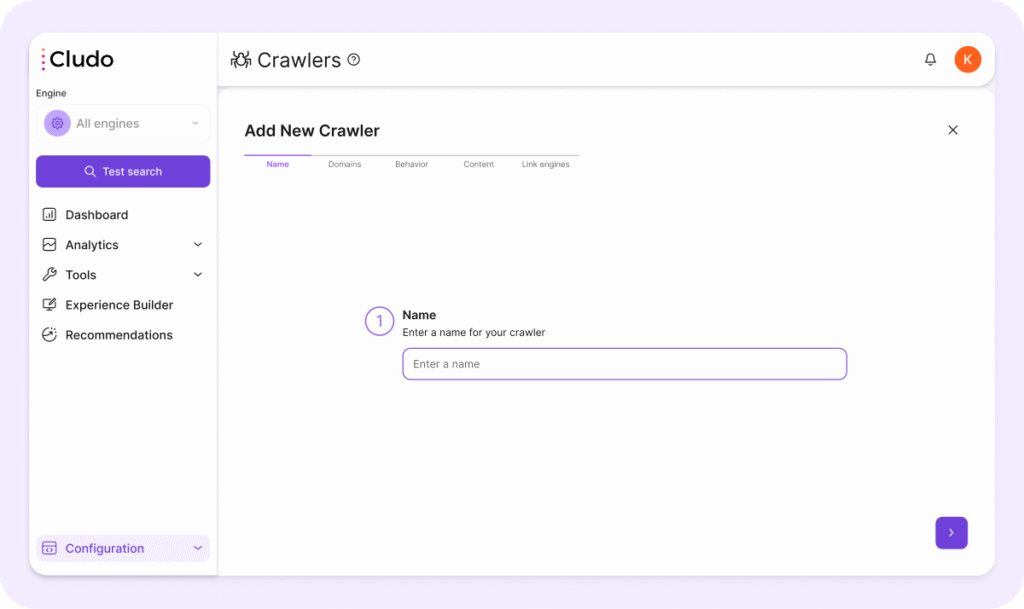
1. Name
Give your crawler a name that reflects the domain or use case (e.g. “Main Site”, “Support Portal”, etc.).
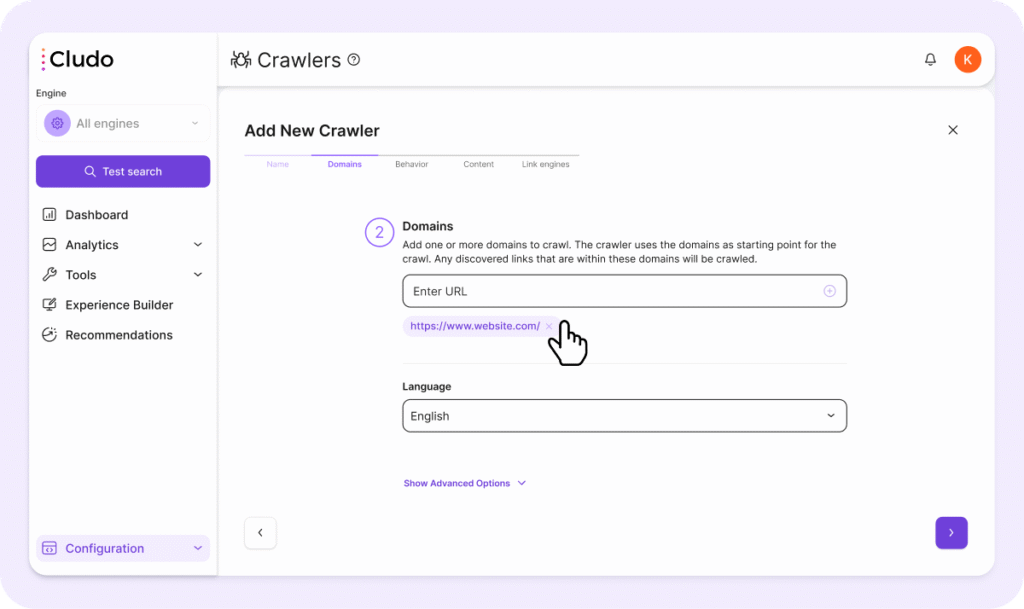
2. Domains
In this tab, define the scope of what the crawler should index.
- Domains: add the base domains you want the crawler to scan (e.g.
https://www.example.com/). - Language: select the primary language of the content. Note: you should create a separate crawler per language.
Advanced Options:
- Page Inclusions: add specific page URLs you want to guarantee are indexed, even if they’re outside the domain list. Links on these pages will not be followed.
- Page Exclusions: prevent certain pages from being crawled. You can use partial matches like
/docs/to exclude all matching URLs. - URL Regex: use regular expressions to match and exclude patterns of URLs.
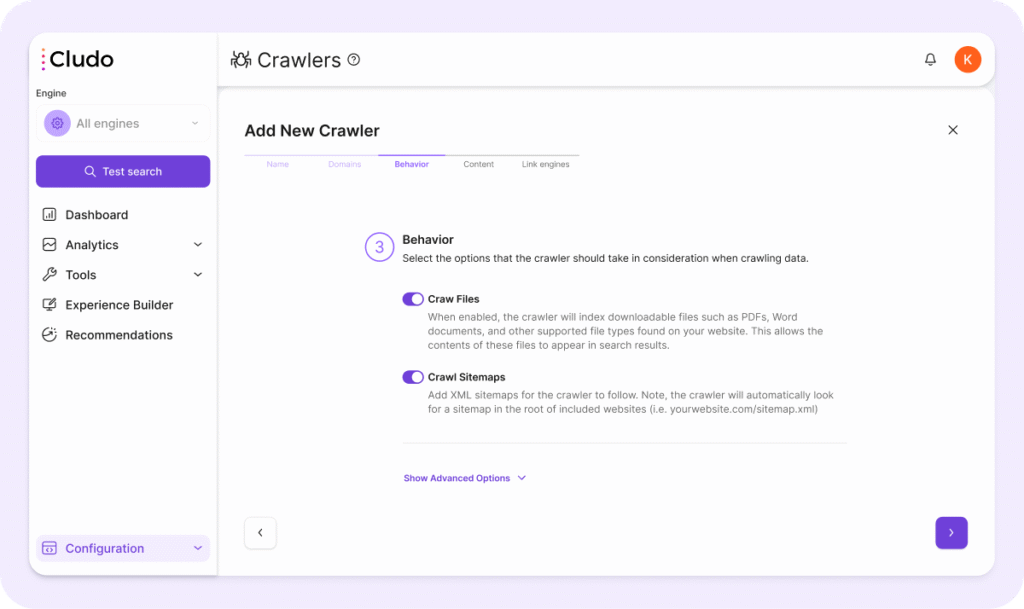
3. Behavior
Configure how the crawler behaves when scanning your site.
- Crawl Files: enable indexing of downloadable files (PDFs, DOCs, etc.). This allows users to find file contents in search results.
- Crawl Sitemaps: add XML sitemap URLs here. The crawler will also auto-discover sitemaps that contain the URL-path
/sitemap.xmlor are listed on yourrobots.txtfile by default.
Advanced Behavior Settings:
- Respect nonindex tags and robots.txt: when enabled, the crawler honors
robots.txtand metanoindexrules to avoid indexing restricted content. - Respect canonical tags: when enabled, Cludo prioritizes the canonical version of a page, helping to avoid duplicate results.
4. Content
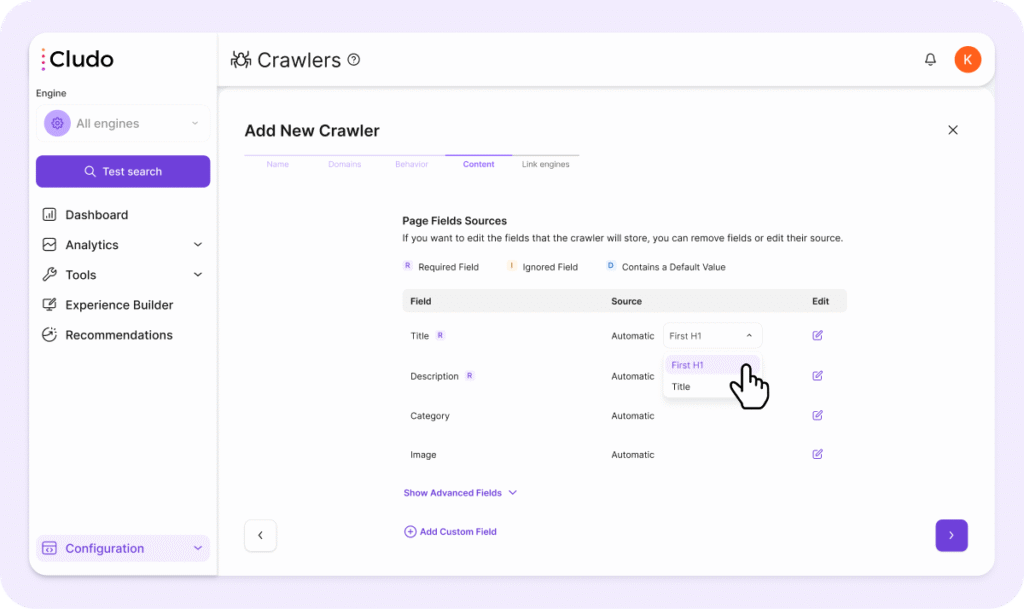
The crawler will attempt to extract common fields automatically (Title, Description, Category Image, Date). You can customize these fields:
- Each field has a Primary Source and optional Fallback Sources (Automatic, XPath, Cludo Tag, Open Graph, Meta Tag, Structured Data).
- You can assign a Data Type for each field, such as:
- String
- Date (used for sorting or filtering by date)
- HTML
- Array
- You can set fields to be:
- Required: crawling will fail if the field is missing.
- Ignored: the crawler won’t attempt to extract this field.
- Default Value: assign a static fallback value for any field.
You can re-run the crawler by saving it while the Start on Save toggle is activated.
Using Fields for Search, Sorting, and Filtering
Fields can be used for multiple purposes:
- Display only (e.g., Title, Description, Image)
- Hidden but used for search or sorting (e.g., Date, Tags)
- Filterable facets (e.g., Category)
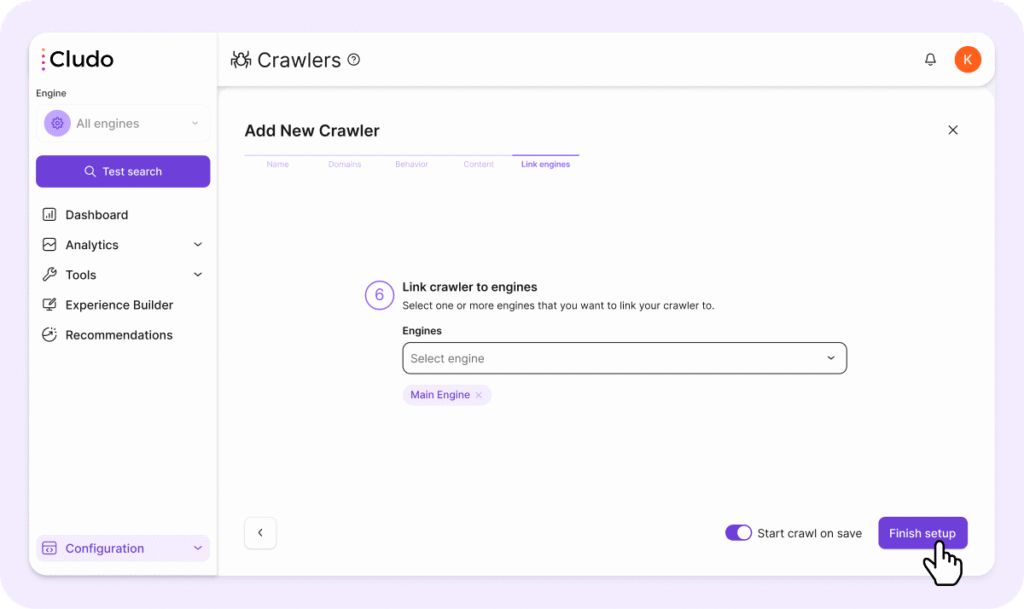
5. Link Engines
Choose which Cludo engine(s) this crawler will push its content to. A crawler can be linked to one or multiple engines.
Once linked, the engine’s search results will reflect all content indexed by this crawler.
Testing Your Crawler
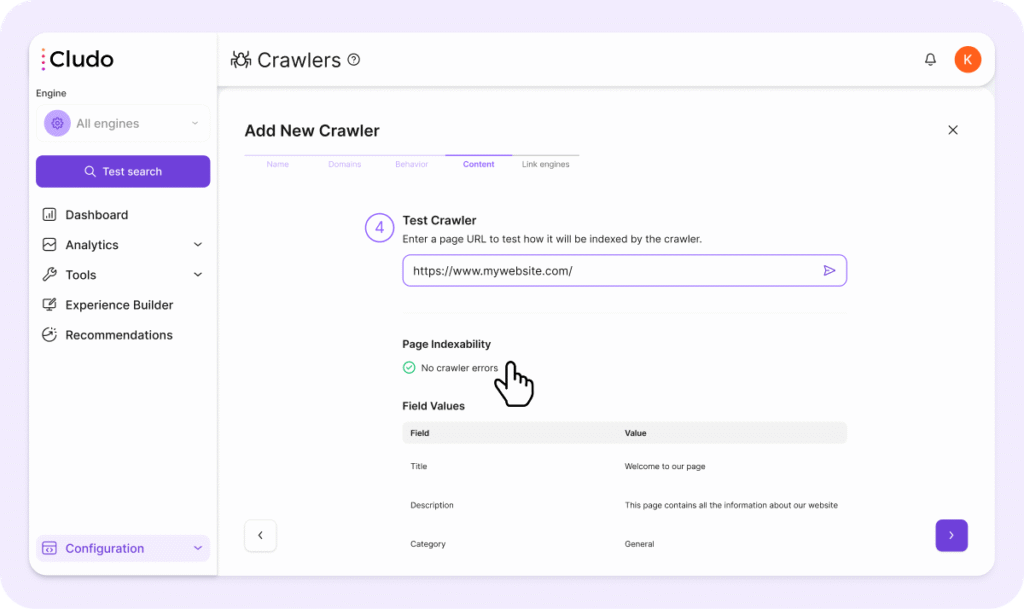
To validate that your crawler is working as expected:
- Go to the Content tab
- Enter a URL in the Test Crawler input field
- Click the arrow to run the test
- Check the extracted fields and values (e.g., Title, Description) to ensure content is being indexed properly
- Adjust the field configuration if needed using the ✎ icon on the right of each field
Best Practices for Crawler Configuration
Language Setup
- Always configure one crawler per language.
- Don’t mix multilingual content in a single crawler setup.
Required Fields
- Title and Description are mandatory. Ensure they have valid sources.
- Fields can be extracted via selectors like
meta[name="description"], XPath, or DOM-based fallback options (e.g., first paragraph).
Custom Fields
- Custom fields let you index structured metadata (e.g., author name, tags).
- You can use them for display purposes or keep them hidden for use in search, sorting, or filtering.
Field Fallbacks
- You can assign multiple fallback sources to a field (e.g., try
og:title, thenmeta title, thenH1). This helps improve indexing consistency.
Use Meta Tags Over XPath
- HTML tags like
<meta>are more reliable than XPath expressions. - XPath can break if your site structure changes.
Handling Multiple Sites
- If you manage different websites or subdomains, create one crawler per structure. Don’t mix distinct sites in one configuration.
Avoiding Duplicate Content
- Enable canonical tag support.
- Use exclusion patterns to skip known duplicates.
What’s Next?
Once the crawler is set up and linked to an engine, it will begin indexing pages based on your configuration. After the crawl completes, verify the indexed content in the Page Inventory.
You can re-run the crawler by saving it while the Start on save toggle is activated.
Need help? Contact Cludo Support or reach out to your Customer Success Manager.