
AI Canned Responses
Overview
AI Canned Responses provide greater control over AI-generated answers in AI Chat and AI Summary, reducing risks like hallucinations and inconsistent responses. By setting predefined answers for specific keywords or phrases, businesses can ensure that critical information is accurate, reliable, and aligned with their messaging. This feature enhances the consistency of responses, delivering trustworthy information across all customer interactions.
How It Works
AI Canned Responses enable users to define key terms or queries that trigger predefined responses. For example, if an end-user searches for “taxes,” the system can be configured to always return the response, “You can see your tax report today,” instead of an AI-generated response that may vary.
Steps to Configure AI Canned Responses:
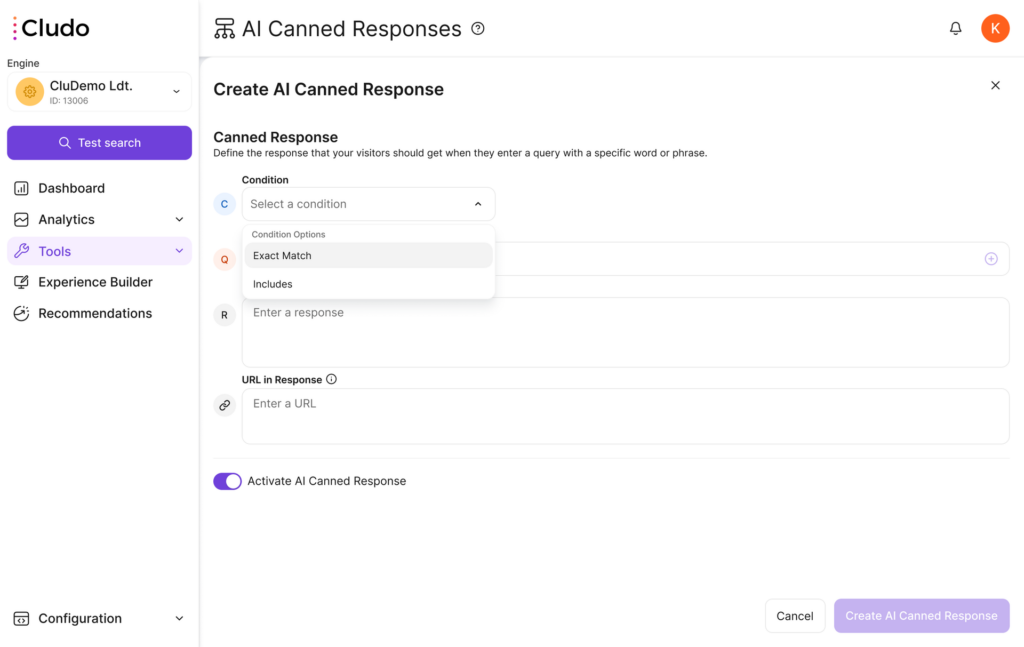
- Navigate to AI Canned Responses: access the AI Canned Responses section from MyCludo.
- Create a New Canned Response: click on the Create New button to begin setting up a predefined response.
- Enter a Name: provide a name for your canned response to help identify it.
- Define a Condition:
- Includes: the AI response is triggered if the query contains the defined keyword.
- Exact Match: the response is only triggered if the query exactly matches the defined keyword or phrase.
- Enter Query Terms: input specific words or phrases that should invoke the predefined response.
- Enter a Custom Response: define the text that should appear when the condition is met.
- Optional – Add a URL: if needed, you can include a URL in the response for additional context.
- Activate AI Canned Response: toggle the switch to enable the response.
- Save the Canned Response: click on Create AI Canned Response to finalize the setup.
Editing and Deleting AI Canned Responses
- Editing: click the three-dot menu next to an existing canned response and select Edit to modify queries, conditions, or responses.
- Deleting: click the three-dot menu and select Delete to remove an unwanted canned response.
Testing AI Canned Responses
Once created, you can test how the AI Canned Responses work within your system:
- Click on “Test AI Canned Response” from the main AI Canned Responses interface.
- Note: responses must be activated in order for them to be testable.
- Enter a Query: type in a keyword or phrase to see how the predefined response is triggered.
- Validate the Response: ensure the expected response appears as configured.
Response Selection Logic
When multiple canned responses match a given query, the system follows a prioritization rule:
- CannedResponse1
- Response Text: “Grow your company financially using our brand new tool on our Platform…”
- Condition: includes
- Terms: company, grow, finance
- CannedResponse2
- Response Text: “Scale your business with AI-driven financial insights on our Platform. Unlock new revenue opportunities today!”
- Condition: includes
- Terms: startup, expand, revenue
Example
A user asks, “How can my company scale its revenue using your platform?”
Both CannedResponse1 and CannedResponse2 match the query, so the system prioritizes the response that was created first.
Wildcard and Pattern Matching Support
Canned Responses now support the use of special characters (*, ?, and #) to create flexible or partial matches. This allows you to trigger a response for a broader range of related user queries.
Examples:
- * → matches any number of characters.
- Example: plan* will trigger for plan, planning, or plane.
- ? → matches exactly one character.
- Example: t?g matches tag, tig, or tug.
- # → matches exactly one digit.
- Example: room# matches room1, room2, etc.
When a user types a search containing these symbols, the system automatically recognizes and applies them to find partial matches or flexible patterns.
Punctuation before or after the query term is also ignored, and capitalization is handled automatically.
For example, if a Canned Response query is set up as plan, it will also trigger for Plan, pLan!, or &plan.